


Here are the steps to delete multiple locations on your store locator
You can bulk delete duplicate store locations using our bulk actions feature. Here’s how:
- Go to Your Locations page
- Select multiple locations by checking the boxes next to the duplicate stores
- Click the Delete Locations button to bulk delete the selected locations
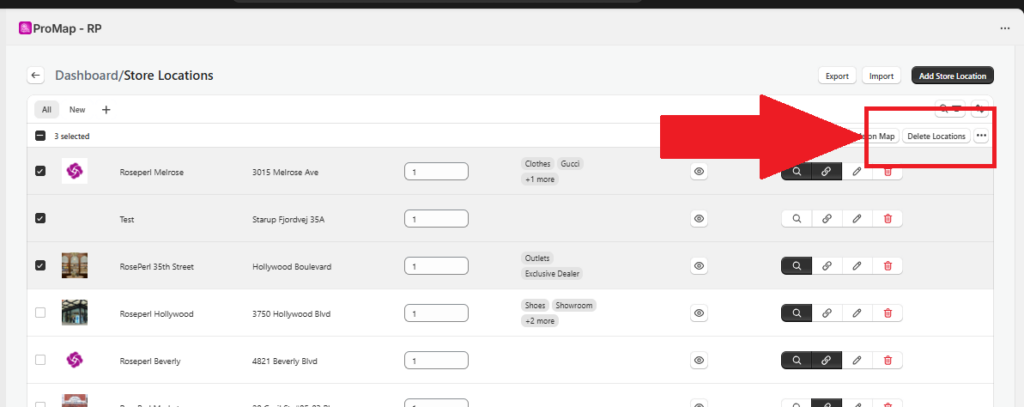
4. Confirm the Delete of the Locations

5. Important: As an added precaution to have your changes update after deleting, you must click the Publish button to apply changes to your storefront.

Pro tip: When importing stores via CSV, you can prevent duplicates by enabling Check for Duplicates – this will overwrite existing stores instead of creating duplicates. If disabled, duplicates will be skipped[2]
This bulk delete feature saves time when cleaning up multiple duplicate locations at once!


